Change Orders
Change Orders are documents you provide to the customer when something changes from the original proposal. These changes may include additional work, reductions, or modifications such as color changes.
For example, a proposal may exclude ceiling painting. Once work begins, the customer decides they want the ceilings painted. In this situation, a change order documents the additional scope and cost and provides a signed record of approval.
Always use a change order for scope or price changes. This protects both you and the customer by clearly documenting the agreement.
Opening the Change Order form
To open the Change Order form:
- Open the estimate for the active job
- Click the Forms button at the top of the estimate
- Select Change Orders

This opens the Change Orders form.
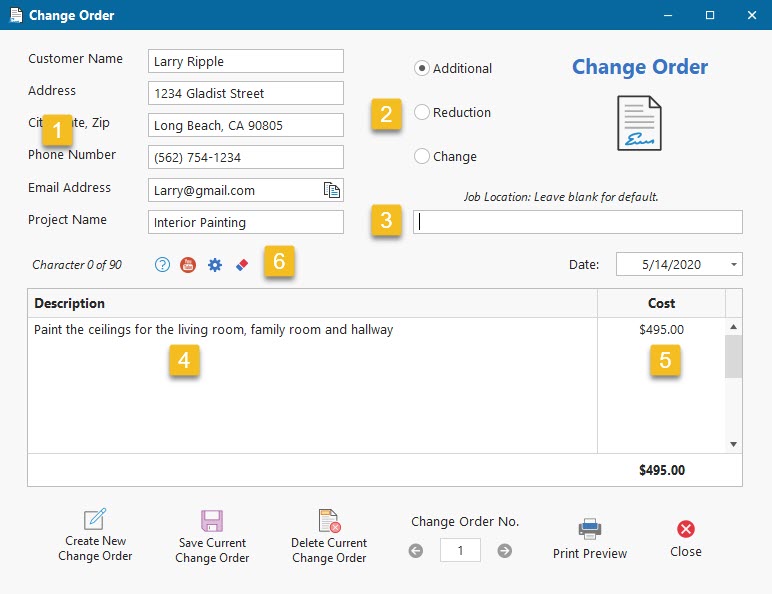
Creating a new change order
To create a new change order, click Create New Change Order in the lower-left corner of the form.
Change Order fields
- Customer address — Displays the customer’s address for the job.
- Change order type — Additional for added work, Reduction for removed work, or Change for modifications such as color changes.
- Job location — Enter an alternate address if the work location is different from the customer’s address. Leave blank if it is the same.
- Description — Enter a clear explanation of what is changing.
- Cost — Enter the cost associated with this change.
- Formatting tools — The blue gear icon controls how many characters fit on a line before wrapping (default is 90). The eraser button clears all change orders for the estimate.
Saving and printing change orders
When finished, click Save Current Change Order to store the change.
To print or save the change order as a PDF, click Print Preview at the bottom of the form.
You can create as many change orders as needed for a job. Ideally, most change orders will reflect additional work rather than reductions.
If you have any questions, please contact support@thepaintestimator.com .