Data Location Wizard
If you would like to share your data between different computers, please read this section carefully.
In this example, Dropbox is used as the shared location. However, you can also use OneDrive, Google Drive, or even a USB drive. Dropbox is free to use and provides enough space for program data.
Before continuing, make sure the sync application (Dropbox, OneDrive, etc.) is installed and logged in on all computers using the same account.
Accessing the Data Location Wizard
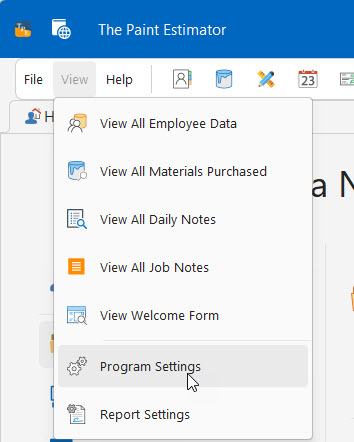
To access the Data Location Wizard, click the View button at the top of the main form, then select Program Settings.
When the Program Settings form opens, click the Data Location button.
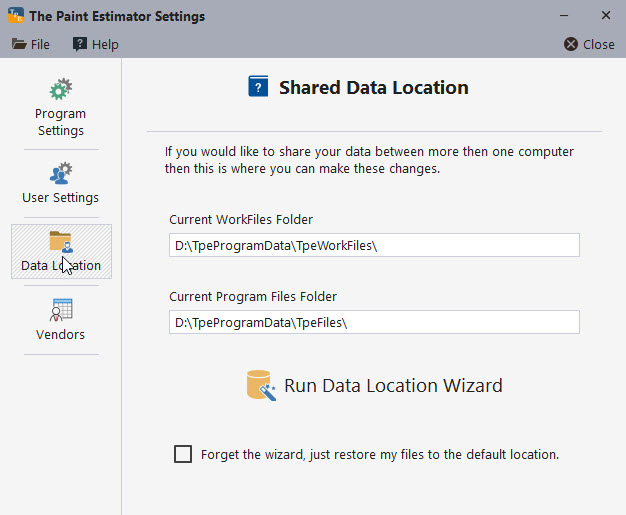
Click the Run Data Location Wizard button to begin.
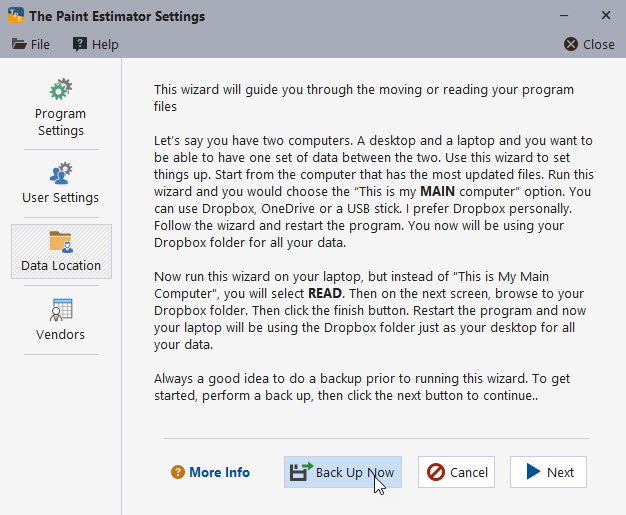
Important: Back Up Your Data
It is strongly recommended that you perform a backup before continuing. Click the Back Up Now button and complete a backup before moving forward.
Step 1: Moving Your Main Data Files
This step should be performed on the computer that contains the most up-to-date estimates and data files.
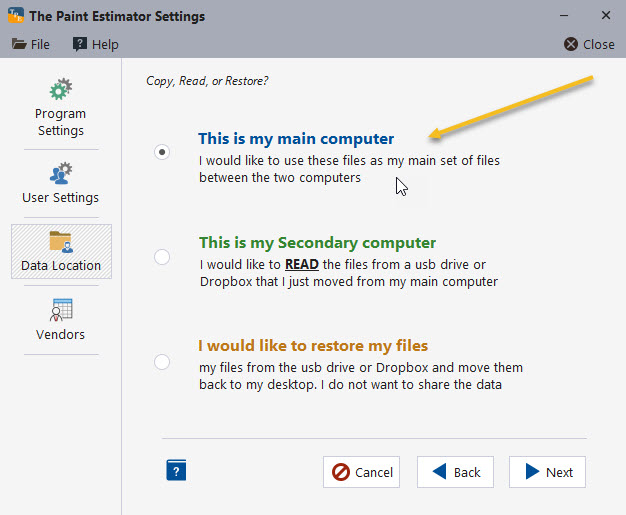
Click Next to begin. Select the option This is my main computer, then click Next.
Browse to your shared folder (for example, your Dropbox folder) and click OK.
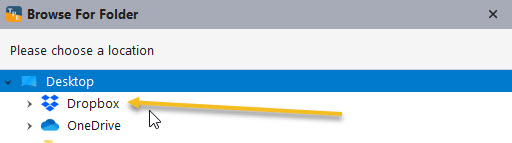
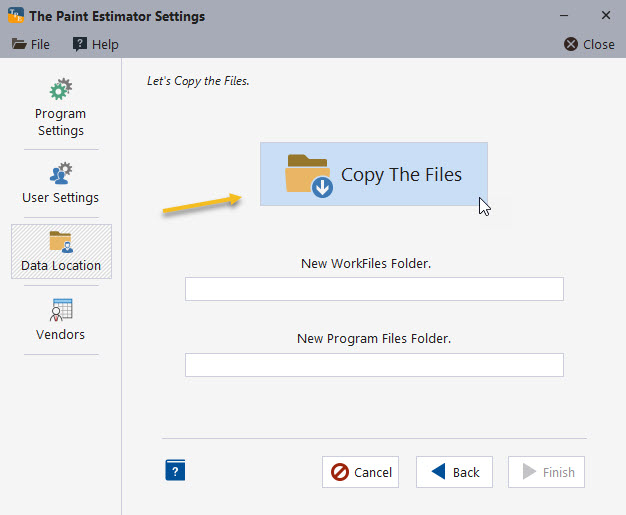
Click Next to continue to the file copy screen, then click Copy the Files.
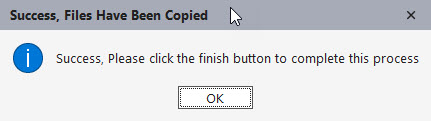
When the process completes, you will see a success message.
Click Finish. The next time you start the program, it will use data from the shared location.
Step 2: Reading Shared Data on Another Computer
On the secondary computer, open the program and run the Data Location Wizard again.
Select This is my secondary computer and click Next.
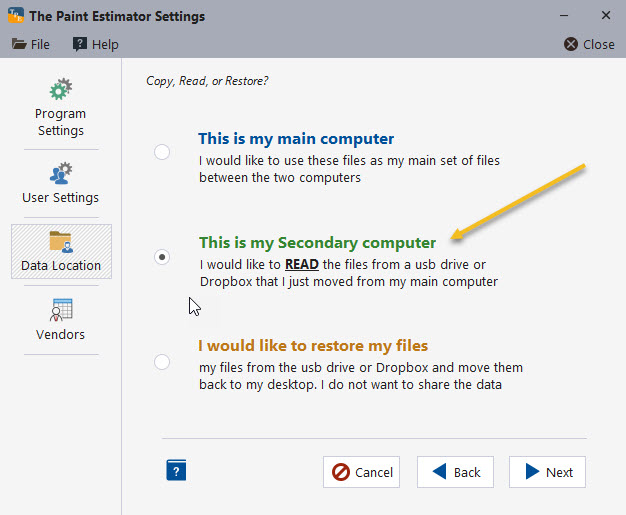
Browse to the shared folder containing the program data and click OK.

When the success message appears, click Finish. The program will now read data from the shared location.
Restoring Data to the Default Location
If you no longer want to share data between computers, you can restore your files to the default location.
Run the Data Location Wizard and select I would like to restore my files.
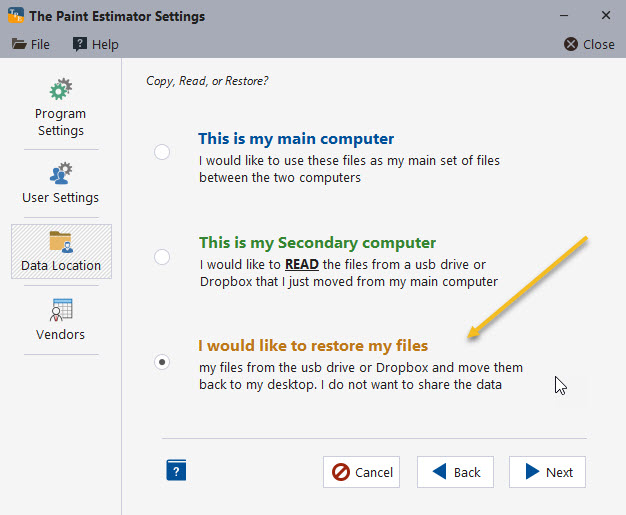
Follow the prompts to copy the files back to the default location. When finished, click Finish.
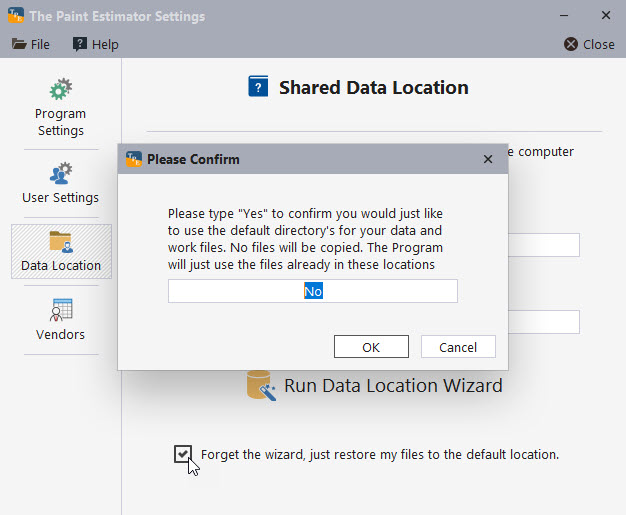
If you only want to use the default location without moving any files, select the option to keep the files in place and confirm when prompted.
Important Notes When Sharing Data
- You cannot work on the same files at the same time when using a shared location. Allow time for syncing to complete before opening files on another computer.
- All computers must be running the same version of the program when using shared data.
If you have any questions, please contact support@thepaintestimator.com .