Using the Progress Page
The Progress Page (also called the Job Projections page) helps you monitor how a job is progressing once work has started.
It allows you to quickly see whether you are ahead of schedule, behind schedule, or right on track—especially useful for longer, multi-week jobs.
Even if you do not actively use the Progress Page, you must still mark the job as finished when work is complete. This ensures your customer database and job history are updated correctly.
To close a job, enable the This Job Is Finished toggle located in the lower-right corner of the page.
Progress Page overview

Each estimated item appears under the Description column. Use the Progress column to enter your best estimate of how much work has been completed.
For example, if a task was estimated to take two days and you have completed roughly one day of work, you would enter 50%.
Understanding the columns
- Progress Percent — Enter your best estimate of how much of the task has been completed.
- Hours — Shows the remaining hours for the task. This value updates automatically as the progress percentage changes.
- Finished — Check this box when the specific task or item is complete.
- Time & Materials — Enable this option if the job is being billed as Time & Materials. For more information, see Converting to Time & Materials.
- This Job Is Finished — Turn this on once all work is complete to officially close the job.
With a little experimentation, you’ll quickly see how the Progress Page helps identify problem areas early and keeps jobs from drifting off schedule.
Coming soon in version 2.0.1.0 - Job Summary Details
To obtain accurate data, it is important to utilize both the job hours and materials page, as well as to apply the progress page completion percentages correctly. This approach is most effective when the job has been fully completed.

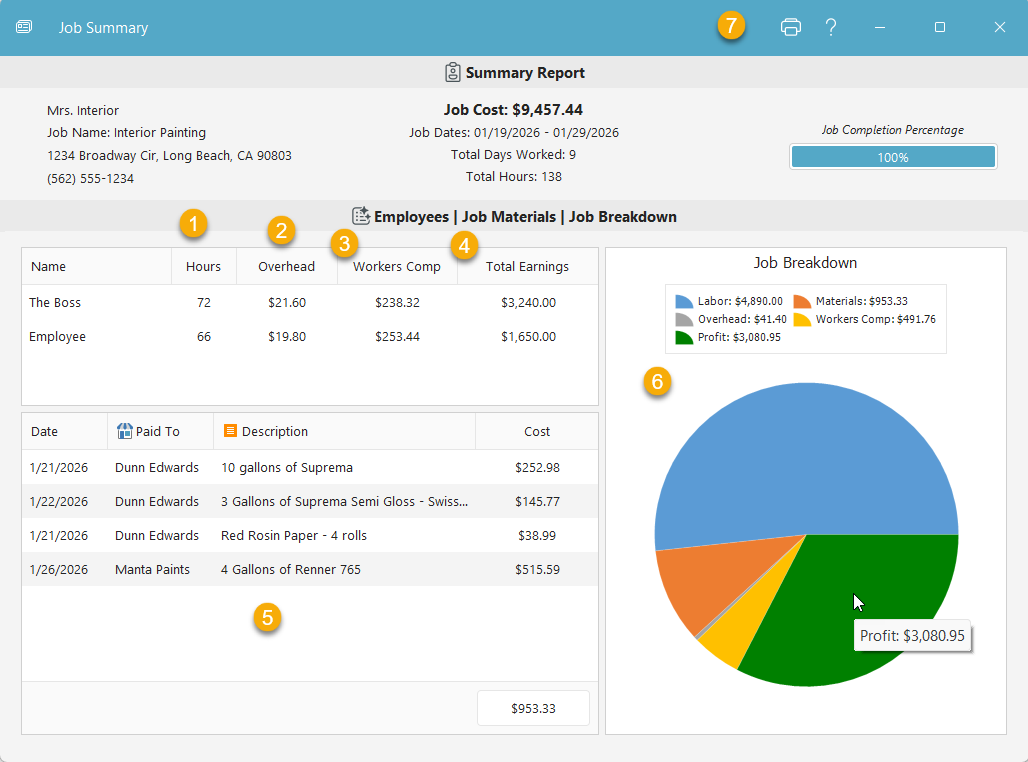
- Job Hours — The total number of hours the employee has worked on the job.
- Overhead — Shows the total overhead earnings that the employee has earned for the company on this job.
- Workers Comp — Shows the total workers comp costs that this employee accrued for this job.
- Total Earnings — The employee's base wage multiplied by the total job hours.
- Job Materials — A list of all the job materials that was purchased for the job.
- Job Breakdown — A simple pie chart showing the job break down.
- Print Preview — Here is where you can create a hard copy for your files or save as PDF for a digital copy.
If you have any questions, please contact support@thepaintestimator.com .