Understanding the Estimate Tab Page
The Estimate tab is where you generate all pricing for a job. This page walks through each section of the Estimate tab and explains how pricing, labor, materials, and profit are calculated.
Estimating modes
There are three different ways to create estimates in The Paint Estimator:
Manual Mode
Manual Mode is used when you already have a good sense of the job. For example, you may know a stucco job will take three painters two days and require eight gallons of paint.

This method is still based on experience and historical data, even though measurements are not entered.
Subcontractor Mode
Subcontractor Mode is used when outside labor is required. Labor and materials are not calculated internally and are treated as an external cost.

Item Cost Mode / Kitchen Cabinets
Item Cost Mode allows you to estimate individual items by cost. This opens the Item Cost form for entering fixed-price items.

Learn more about using the Item Cost option .
Production Rates Mode
Production Rates Mode is the most detailed estimating method. You measure areas and enter dimensions so pricing is calculated automatically using your production rates.

Learn more about using Production Rates .
Estimate main grid

- Description – The task being performed
- Days – Estimated number of days
- Employees – Number of workers assigned
- Materials – Materials required for the task
- Labor – Labor cost for the task
- Total Cost – Combined cost of labor and materials
- Exc – Exclude the task from final totals
- Notes – Colors, instructions, or internal notes
Employees assigned to the job

Select which employees will be working on the job. Their wages are used to calculate labor costs.
Hourly wage option
You can enter an hourly wage to automatically adjust the company profit percentage. This represents what you are charging the customer per hour, per employee.

Summary cost section

This section shows total job cost, estimated duration, and allows you to adjust profit for labor and materials.
Estimated summary projections

Displays projected earnings, labor costs, and overall profitability.
Estimate details
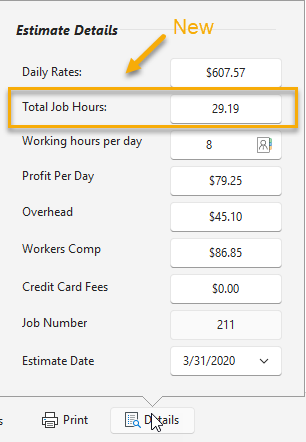
Additional information such as job date, daily rates, total job hours, and profit breakdown can be viewed here.
If an estimate was created before version 2.0.0.7, total job hours may show as zero. To recalculate, click the company profit percentage button and then close it.
Other options

From the options menu you can enable or disable overhead, workers compensation, credit card fees, and materials profit. You can also update employee data if wages have changed since the estimate was created.
Learn how to perform your first estimate .
If you have any questions, please contact support@thepaintestimator.com .