Proposal Settings & Logos
This section controls how your company name and logo appear on proposals and invoices. It also includes settings for proposal templates, editor defaults, and GST or state tax options.
- Proposal Options — Choose a proposal template
- Editor Options — Fonts and colors
Adding or changing your logo
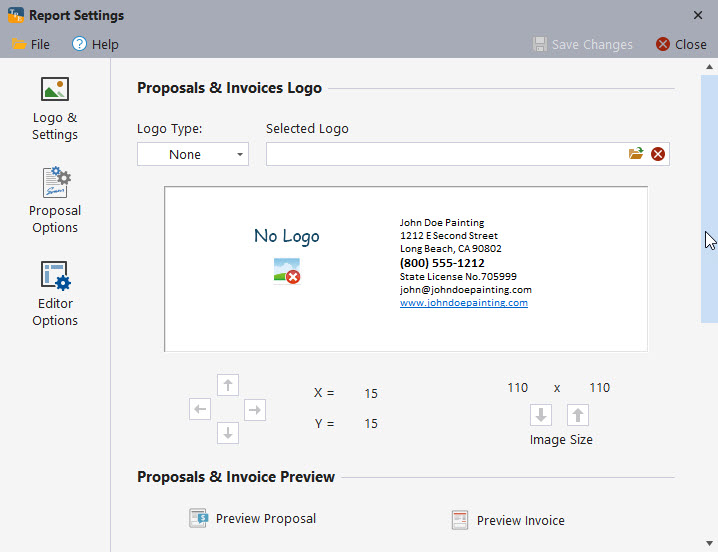
The program includes several stock logos, or you may use your own custom logo. In this example, a stock logo is selected.
Click the folder icon in the Selected Logo field to open the file browser.
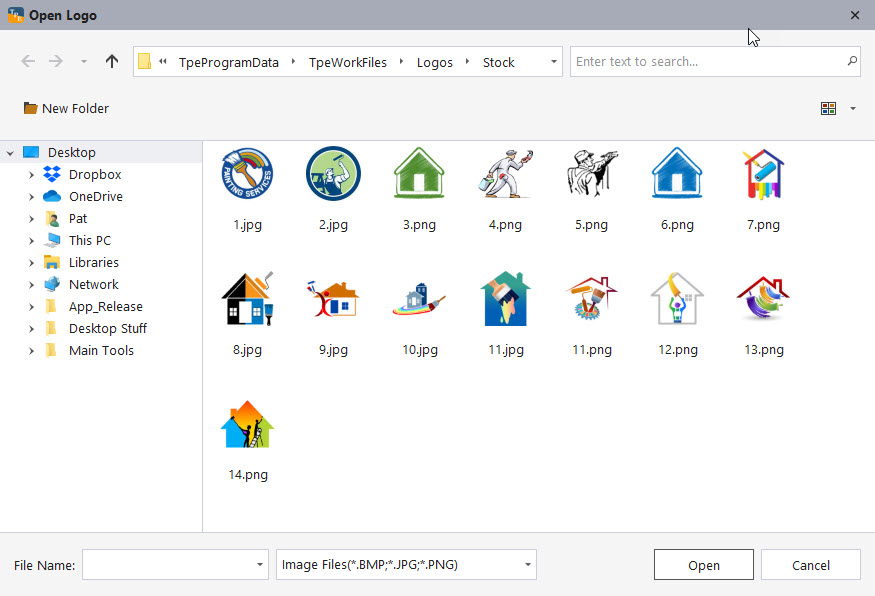
If using a custom logo, browse to its location using the menu on the left. Select the logo and click Open.
Logos work best when they are square or near-square. Wide or tall images may not scale cleanly in the proposal header.
When prompted, confirm whether the logo image is square.
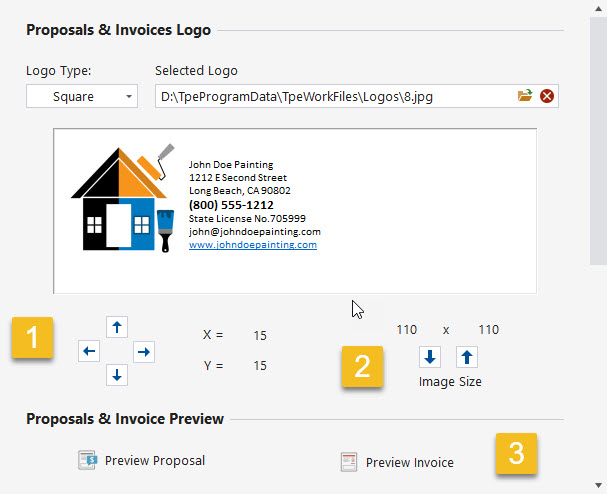
Use the controls to fine-tune how your logo appears:
- Adjust the logo position
- Adjust the logo size
- Preview the logo on a proposal or invoice
Company name and tax settings
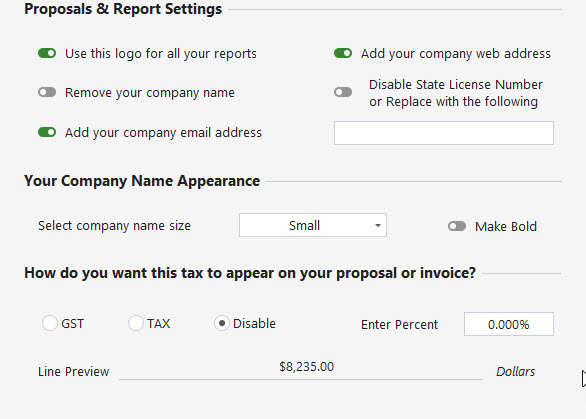
Scroll down to configure how your company name appears on proposals and to enable GST or state taxes if applicable.
After making changes, scroll back up and preview your proposal. When satisfied, click Save Changes.
Tax settings affect all new proposals. Always verify tax configuration before sending proposals to customers.
Proposal Options
Proposal Options allow you to select a proposal template. Two templates are currently available:
- Default proposal template
- Signature-enabled proposal template
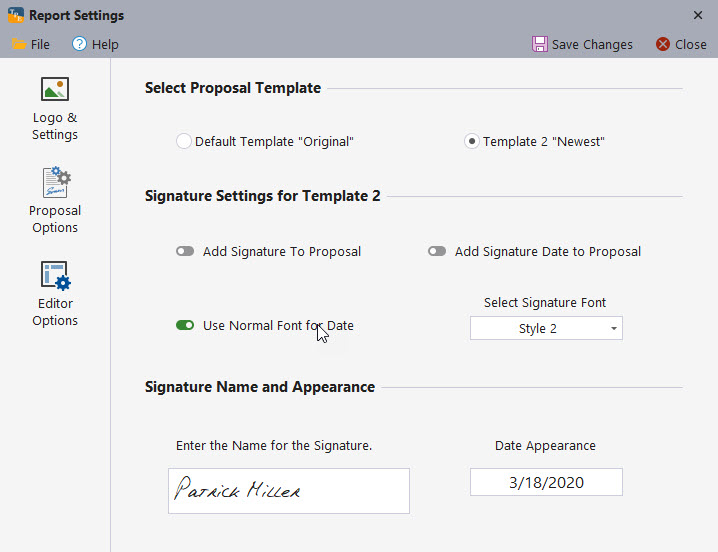
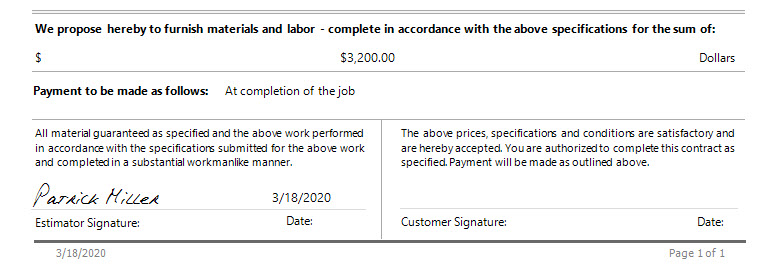
To use the signature-enabled template, select Template 2 and enable Add Signature to Proposal.
If you plan to add a signature manually using a PDF editor, leave the signature option disabled.
- Use a normal font for the date when inserting signatures manually
- Enter the estimator’s name in the signature name field
Editor Options
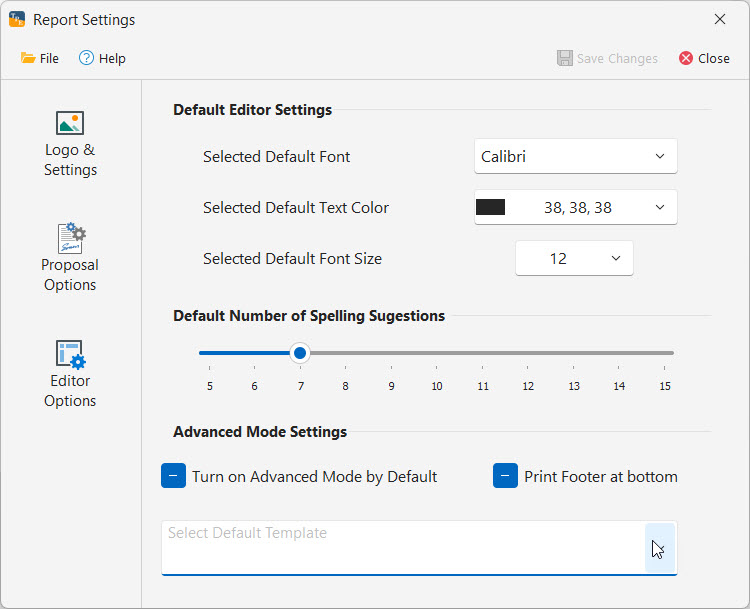
Editor Options control the default fonts, colors, and formatting used in the proposal description area. It also allows you to set the default view of the proposal if you prefer to use the Advance Mode for all your proposals. More info on Advanced Mode can be found HERE
These settings become the default each time you start a new proposal.
If you have any questions, please contact support@thepaintestimator.com.