User Settings
User Settings are settings related to the computer the program is installed on. These are your personal settings and can be different for each computer that has access to the program data files.

Setting Descriptions
1. Disable Checks for Updates on Program Start Up – Check this option if you want the program to check for updates each time you start the program. This option is recommended.
2. Preferred Estimating Method – When starting a new estimate, the program can default to either Manual Mode or Production Rates. The default is Manual Mode.
3. Dymo Printer – Enable this option if you have a compatible Dymo printer installed. If no compatible printer is detected, this option cannot be enabled.
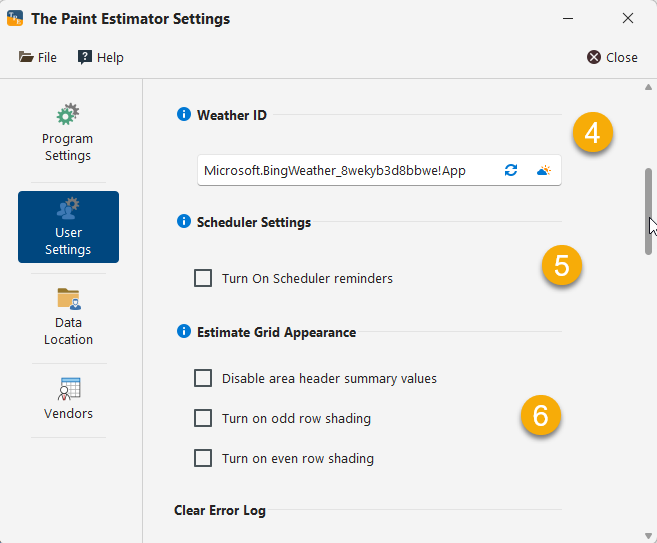
4. Weather ID – The program uses Windows weather information to display local weather data. If the weather information is not updating correctly, click the refresh button next to the weather icon to update the ID. This feature is still considered beta and may not work on all systems.
5. Turn On Scheduler Reminders – Enable this option to receive reminders for upcoming scheduled events without opening the Scheduler form.
6. Estimate Grid Appearance – Adjust the appearance of the estimate grid. You can change styling options and disable group header summary values.
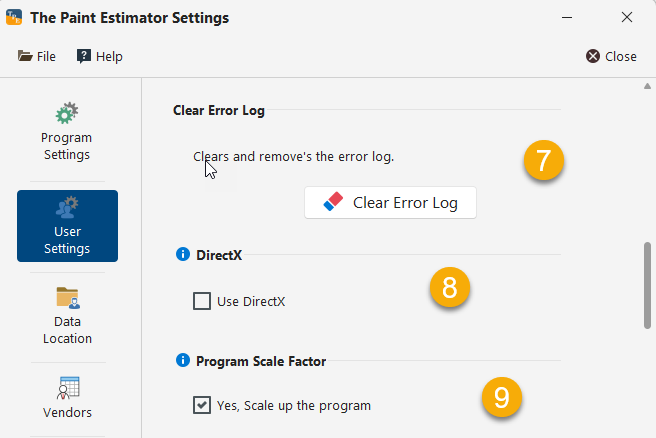
7. Clear Error Log – Clears the program error log. Not all errors are recorded, but this can be useful if you want to remove past error entries.
8. DirectX – Some controls in the program can use DirectX for animation and visual effects. Not all computers support the required DirectX version, so this option is disabled by default. If enabling this causes display issues, turn it back off.
9. Program Scale Factor – Adjusts the scale factor of the program interface. This is useful when using large displays, as it increases spacing between controls.

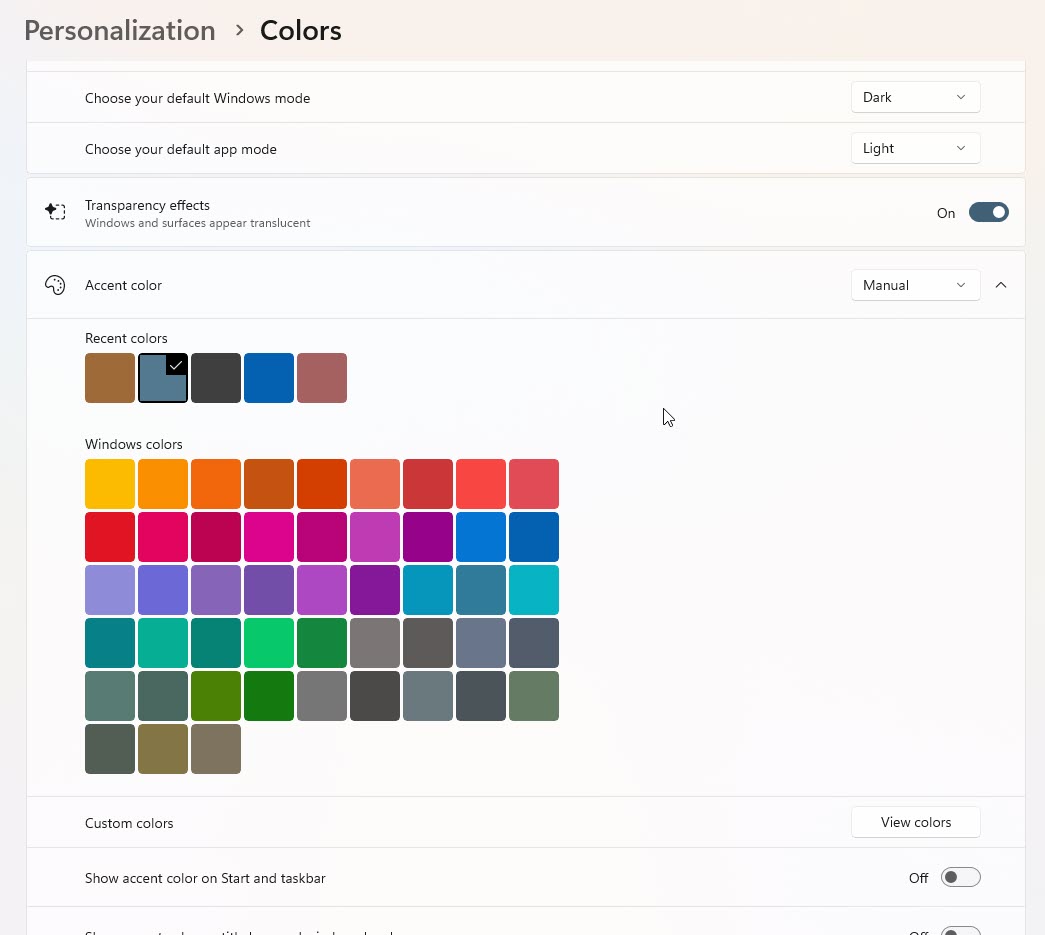
10. Match System Colors (New) – Allows the program to match the system accent colors set in Windows. This option is available for the WXI, Basic, and Bezier themes. A program restart may be required when enabling or disabling this option. Please see the bottom of this page on how to change your window system colors
11. OpenAI Secret Key If you use OpenAI - this is where you put your secret key

12. Clear Most Recent Files – Clears the most recent file list on the home page
13. Reset News Messages – Resets program news messages so they will display again. Some messages are only shown a limited number of times at startup.

14. Reset User Settings – Clears the theme to the default theme, resets all your form sizes and locations to the default settings. The copy button will copy your user settings file to your desktop so you can send to support for additional troublshooting.
15. Reset Program to Default Settings – Resets the program to its default settings, similar to a fresh install. Your license, data files, and estimates will not be removed.
To view or change Windows system colors, right-click anywhere on your desktop, select Personalize, then choose Colors.
If at any time you have questions, please contact support@thepaintestimator.com .