Job Scopes
Job Scopes are pre-written descriptions that can be reused across proposals. They dramatically reduce the time required to write detailed scopes of work by eliminating repetitive typing.
Inserting a Job Scope
To insert a Job Scope into a proposal, right-click anywhere inside the proposal description area and select Insert Job Scope.
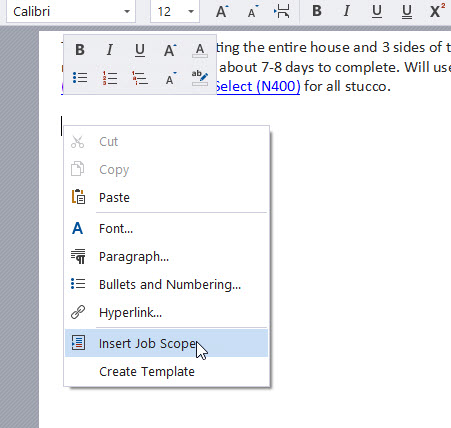
This opens the Job Scope selection window.
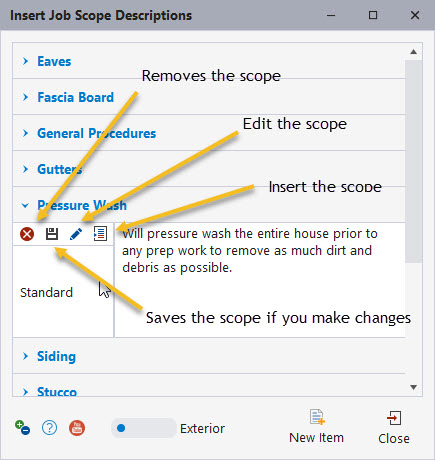
Job Scopes are inserted at the current cursor position. Make sure your cursor is placed where you want the scope text to appear before inserting it.
Editing existing Job Scopes
You can edit a Job Scope directly in the description field of the Job Scope window.
After making changes, click Save to update the scope.
To insert the selected scope into your proposal, click the button next to the pencil icon.
Creating a new Job Scope
To create a new Job Scope, click the New Item button at the bottom of the Job Scope window.
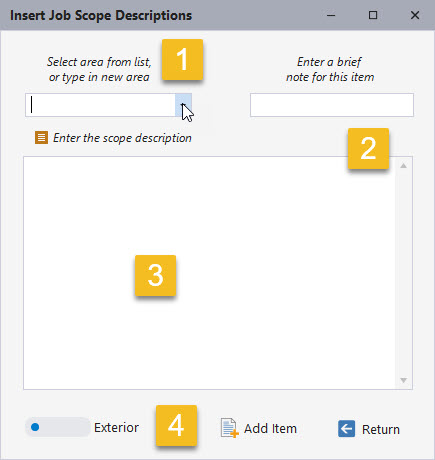
When creating a new scope:
- Select an existing scope title or enter a new one
- Enter a short note to help identify the scope
- Enter the full scope description
- Select whether the scope applies to interior or exterior work
When finished, click Add Item, then click Return.
As with any feature, experimenting on a blank proposal is the best way to quickly understand how Job Scopes can speed up proposal creation.
If you have any questions, please contact support@thepaintestimator.com.