Customer Database
The Customer Database is where you can view and manage all jobs you have estimated. Over time, this becomes one of the most valuable areas of the program as it stores your full job history.
Opening jobs and understanding job status
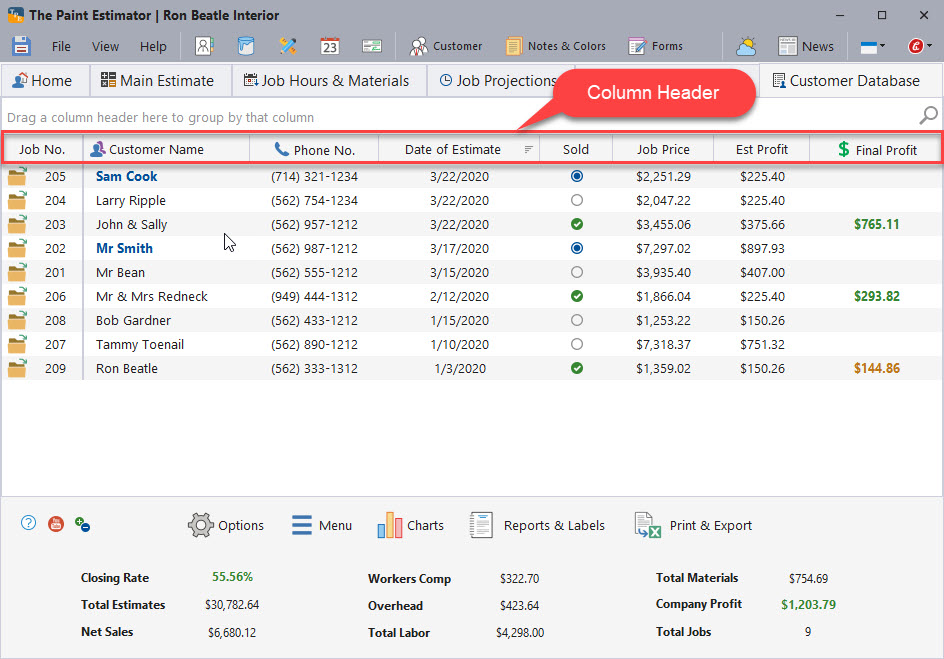
- Click the yellow folder icon to open a job.
- Customers highlighted in blue represent jobs that are still open and in progress.
- Jobs remain open until you mark them finished on the Progress Page.
If a job still appears open after work is complete, verify that This Job Is Finished is enabled on the Progress Page.
Sold status indicators
The Sold column uses visual indicators to show job status:
- Blue dot — Job sold and currently in progress
- Green checkmark — Job sold, completed, and closed
- Empty circle — Job not sold or customer hired someone else
Searching, sorting, and filtering
Use the magnifying glass in the upper-right corner to search across all visible columns.
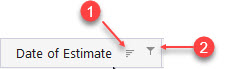
Click inside any column header to access sorting and filtering options.
Showing and hiding columns
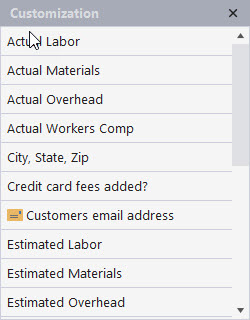
The Customer Database contains many optional columns that are hidden by default.
To customize visible columns:
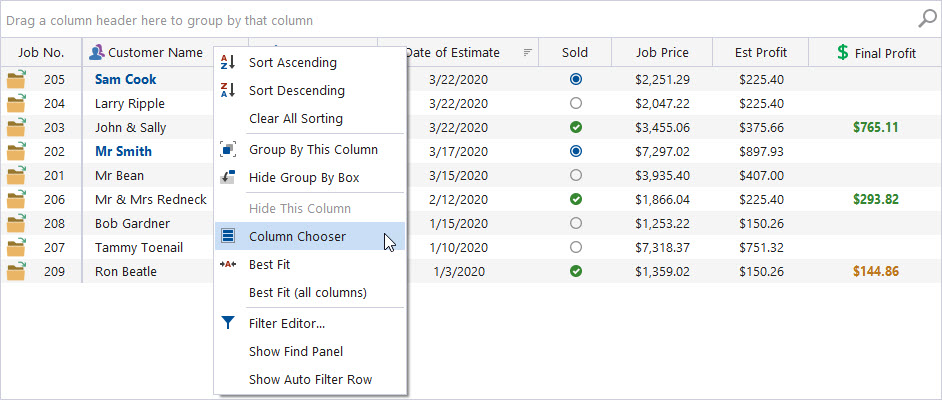
- Right-click anywhere in a column header
- Select Column Chooser
- Double-click any item to add it to the grid
To reset the layout, click Options at the bottom and choose Restore Layout to Default.
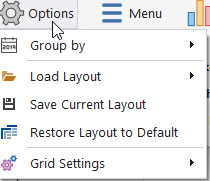
Using the context menu
Right-click any row in the grid to open the context menu.
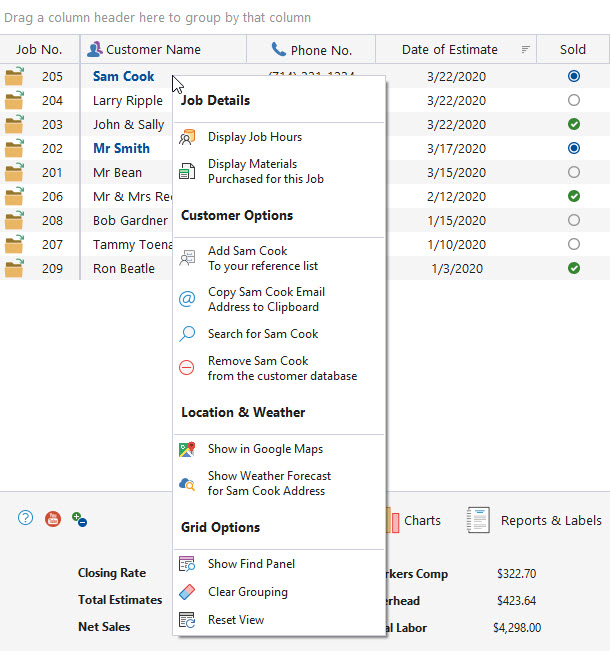
From this menu, you can:
- View job hours for the selected customer
- View materials purchased for the job
- Add or remove the customer from your reference list
- Copy the customer’s email address
- Show only jobs for the selected customer
- Remove the customer from the database
- View the customer’s address in Google Maps
- View the local weather forecast
- Clear grouping or reset the view
Bottom menu tools
Most reports, charts, and exports are based on the currently visible and filtered data in the grid.
Grouping options
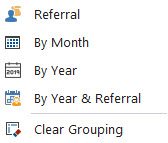
Use grouping to organize the grid by salesperson, referral source, job status, or other fields.
Menu shortcuts
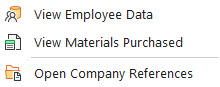
Quick access to company references, materials purchased, and employee hours based on the current grid view.
Charts
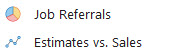
View charts showing where jobs are coming from and compare estimates versus sales.
Reports & Labels
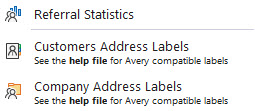
Generate referral reports or print mailing labels. For more information, see Printing Labels.
Print & Export
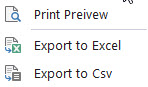
Print the grid or export data to Excel or CSV format.
Summary information

The summary bar displays totals based on the data currently visible in the grid.
The longer you use the program and the more data you enter, the more valuable the Customer Database becomes.
If you have any questions, please contact support@thepaintestimator.com .