Employee Hours
The Employee Hours form is similar to the Job Materials and Expense forms, but instead of displaying materials or expenses, it shows the hours employees worked across your jobs.
Once employee hours are entered on active estimates, this form allows you to review, group, and report on that data in one central location.

Opening the Employee Hours form
There are three ways to open the Employee Hours form.
Option 1: From the main menu
From the top menu, click View and select View All Employee Data.

This option displays employee hours for all jobs.
Option 2: From the Customer Database
On the Customer Database page, click the menu button at the bottom and select View All Employee Data.

This method respects any filters currently applied in the Customer Database. For example, if you are filtering to show only last year’s jobs, only employee hours from those jobs will be displayed.
Option 3: From the Customer Database context menu
Right-click a customer or job in the Customer Database and select Display Job Hours.

This option shows employee hours for the selected customer only. If the job has not been started, this option will be unavailable.
The Employee Hours form

The View tab
The View tab allows you to group and organize employee hours using preset grouping options or by dragging column headers into the grouping area.
- A: Job Number — The job where the hours were recorded
- B: Wage — Base rate plus overhead and workers’ compensation
- C: Hours — Total hours worked for the day
- D: Workers’ Comp — Workers’ compensation earned for the day
- E: Overhead — Overhead earned for the day
- F: Base Pay — Base pay multiplied by hours worked
- G: Group Summary — Totals for the grouped employee
- H: Overall Summary — Totals for all displayed employees
Settings options
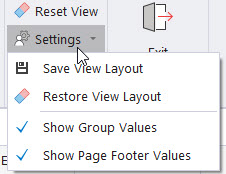
- Save View Layout — Saves the current layout for future use
- Restore Layout — Resets the layout to the default view
- Show Group Values — Toggles grouped footer totals
- Show Page Footer Values — Toggles overall footer totals
By Date or Pay Period tab

- A: Date Range — Filter hours between selected dates
- B: View Type — Switch between Date and Pay Period views
- C: Pay Period Options — Select pay period settings

Printing and exporting

You can print the currently displayed data or export it for use in payroll processing or reporting.
If you have any questions, please contact support@thepaintestimator.com .