Proposal Details
The Proposal Details panel stores all essential information related to your proposal, including customer details, payment schedules, and total job cost.
This is also where you can choose whether to include Terms & Conditions and Reference lists with your proposal.
Information entered in Proposal Details appears directly on the final proposal. Always review this section carefully before sending a proposal to a customer.
Opening Proposal Details
To open Proposal Details, click the Proposal Details button on the Proposal page.
To close the window, click the Close button located below the Attach Reference List checkbox.

Understanding the layout
The Proposal Details panel is divided into three sections:
- Left: Customer name and address
- Center: Customer email address, total job cost, and payment schedule
- Right: Project name, proposal date, job number, and attachment options
Customer email tools

Click this button to copy the customer’s email address directly to your clipboard. This is useful when emailing proposals outside of the program.
Locking or hiding the total price
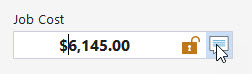
The Lock button locks the total price in place. This is commonly used to round prices to a clean, even number.
The Comment button allows you to replace the total price with custom text.
If you itemize pricing inside the proposal description and allow the customer to choose which items to proceed with, you may want to replace the total price with text such as “Please see above.”
When clicked, a dialog appears allowing you to either:
- Leave the field blank to display the actual total price
- Enter custom text to replace the price on the proposal

Attaching terms and references
To include your Terms & Conditions or Reference list with the proposal, simply check the appropriate boxes.
These sections will be appended to the proposal when it is previewed, exported, or printed.
If you have any questions, please contact support@thepaintestimator.com.