Advanced Mode
A little information about the Advanced Mode (was list mode in prior versions before 2.0.0.8). This was created for those who export their documents to Microsoft Word that had multiple pages and used number lists or used the import estimate feature on the proposal page where it inserted a table into the document. Without this, the number lists would reset on each page, and the tables would not export correctly when exporting to Microsoft Word. The main issue with this method is it would print full headers and footers on each page. For many this did not look right, so starting with version 2.0.0.8 you now have a few options
Just a quick note here on Options 1 and 2. The first thing you might notice when selecting either of these options is you will lose the page view on the proposal page, in other words the entre description area is expanded as one entire document. There will be no page count at the bottom of the description area. The reason is there is no way I can set the page height and width based on the specific page you are on. If the document is three pages, the description area height will be different on each page. So, the only way you will know how many pages your proposal is would be to click the proposal preview button.
If you selected to print the footer at the bottom of the page. Microsoft Word ignores this. So, you would have to do this manually in Microsoft Word.

When enabled, Advanced Mode the gear icon to the right becomes active, go ahead and click the gear icon to bring up the options on how you would like your propsals to display

Option 1
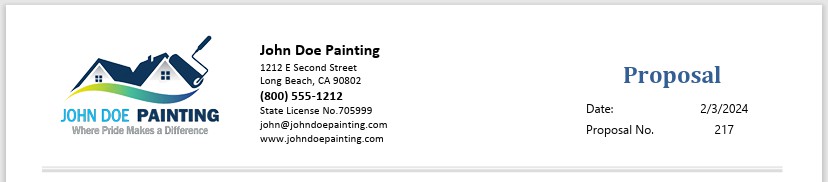
This will print a full header on the first page, a simplified header on each page after the first page and the footer only on the last page.

Option 2
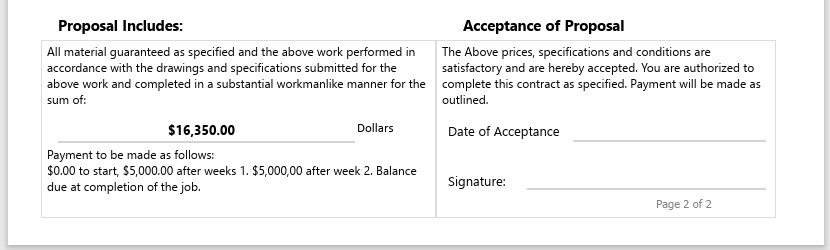
This will print a full header on the first page and a footer on the last page. So, if your proposal is 3 pages long, the first page will have the full header, the second page will have just the description only, and the last page will have the footer The below images are from the 2nd proposal template
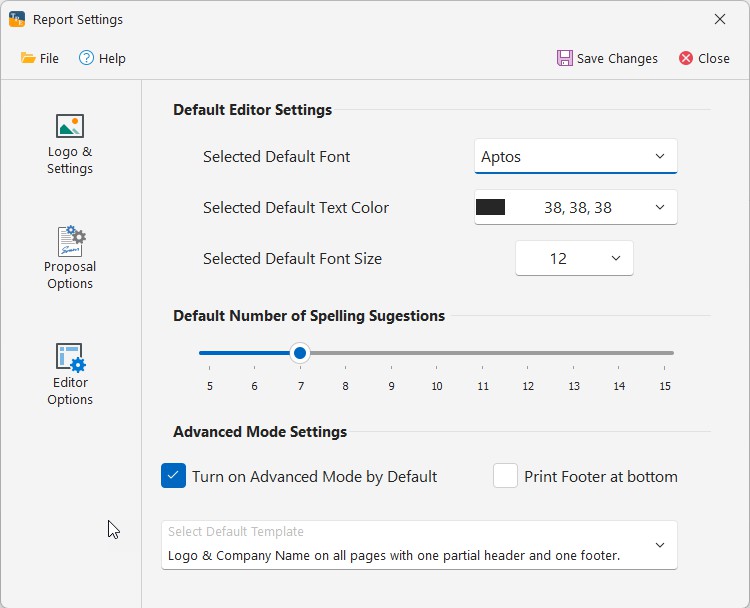
If you prefer to use either one of these options as your default proposal method, you can open up the report settings and select “Editor Options” Then make your selections under the Advanced Mode Settings. When finished, click the “Save Changes” button at the top.
If you have any questions, please contact support@thepaintestimator.com.