Coming Soon in Version 2.0.1.0 – Creating Tasks and To-Do Lists for Your Company
You can now create Tasks or To-Do Lists using The Paint Estimator. This feature is great for keeping track of things you need to do for your company. You can create built-in alarms for when tasks are due and even sync them with your Google Calendar.
To get started, click the Tasks button at the top of the main form.

This will open the Tasks Form.
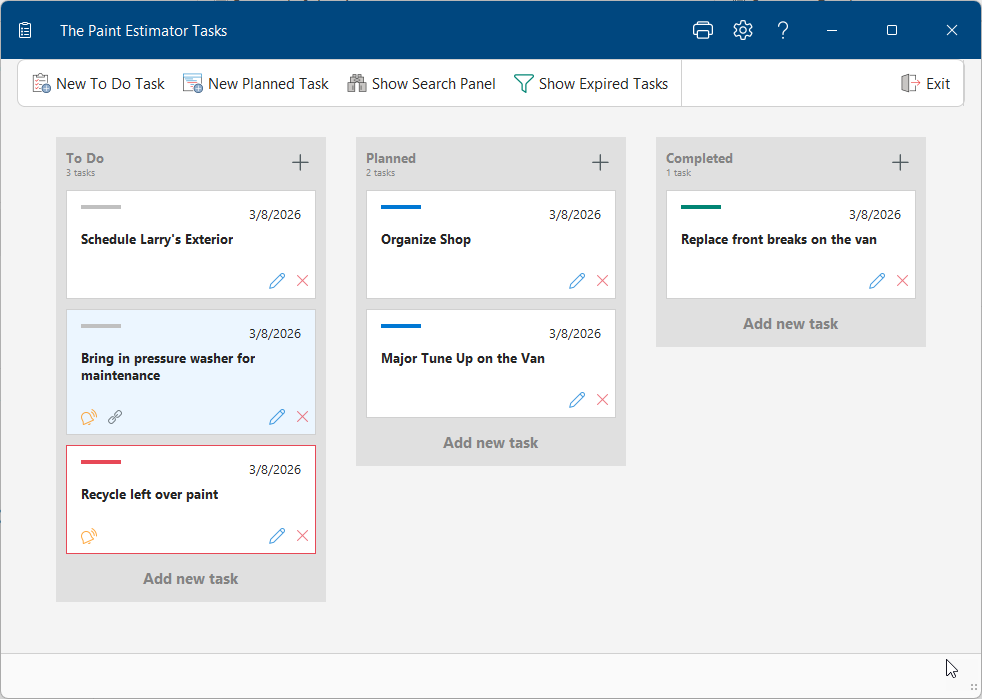
There are three categories: To-Do, Planned, and Completed. Each task is displayed as a tile.
To create a new task, click the + (Add) button at the top of a category, or click one of the buttons at the top of the form. A dialog will appear asking you to enter a title for the task. After entering the title, the task will be created.
To add more details or set a reminder, click the Edit button on the tile (the blue pencil icon located in the lower-left corner of the tile). This will open the edit form.
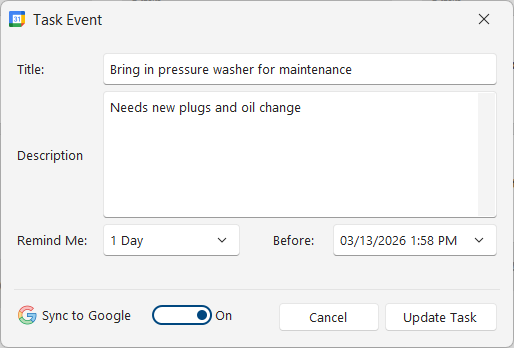
Here you can change the title, add a description, and set reminders for both the program and your Google Calendar.
If you have not linked your Google Calendar to the Job Scheduler, this option will not be available. To set up Google Calendar synchronization, please click here to learn how to sync the Scheduler with Google Calendar.
Tile Details

- The creation date of the task.
- The title of the task.
- If you see the alarm bell icon, a program reminder has been set. Each time the program starts, it checks whether a task is about to become due or is already past due. If so, a notification will appear in the lower-right corner of your screen.
- Link icon — indicates that this task has been added to your Google Calendar.
- The edit button — opens the edit form.
- The delete button — removes the task from the list.
If you see a tile that is outlined in red and the status bar is also red, this means the task is past due. You can see an example of this in the image above.
To move a task from one category to another, simply drag and drop it. Click the tile you want to move, hold down the left mouse button, and drag it to the category where you want to place it. When the two arrows appear, release the mouse button to drop the tile.
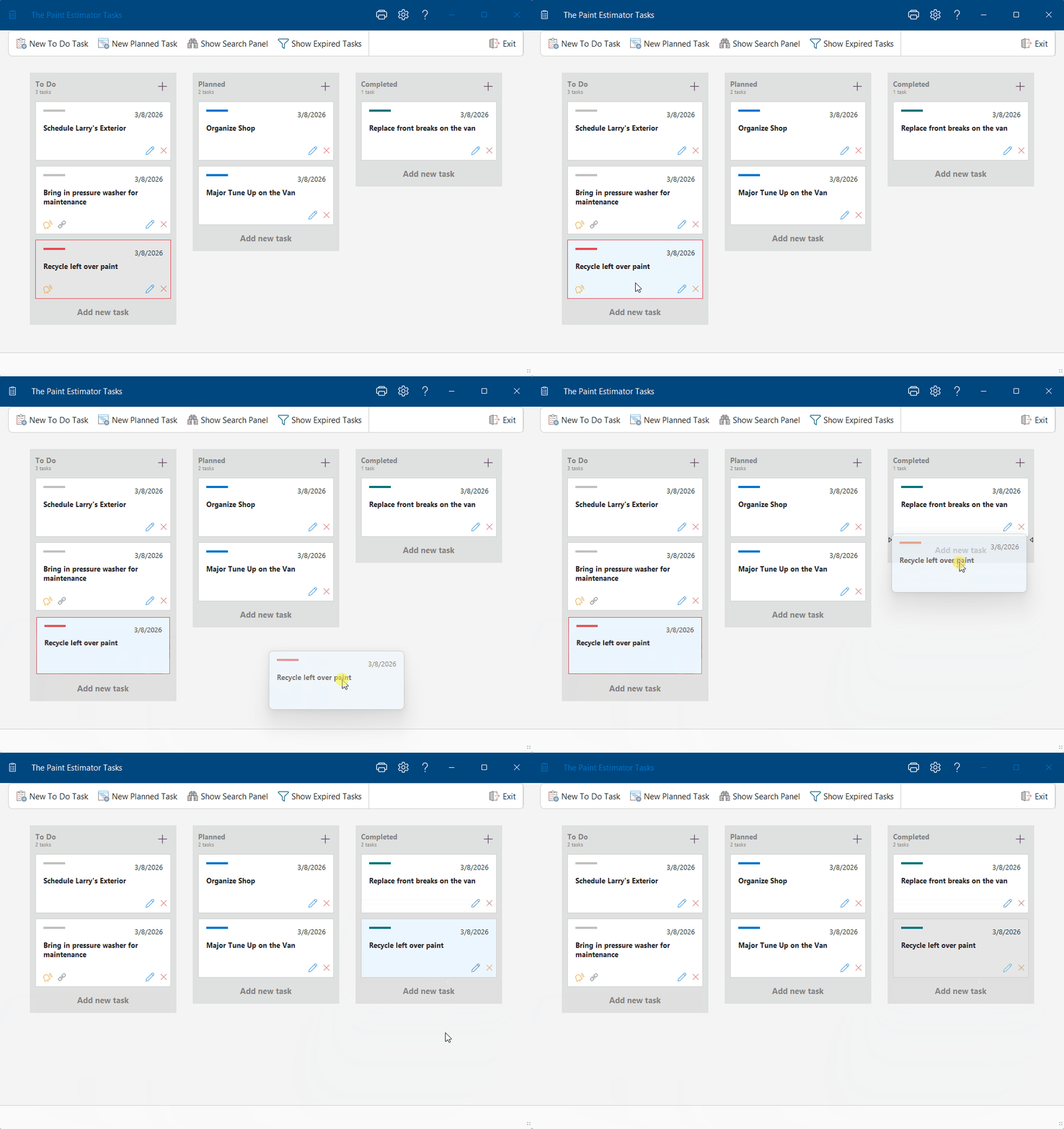
When you move an expired task to the Completed category, the expiration will be cleared and all reminders will be reset. Since the task is completed, reminders are no longer necessary.
We hope you find this feature useful for organizing and managing tasks within your business.
If you have questions about using the Tasks feature in The Paint Estimator, please contact support@thepaintestimator.com.