Import Estimate Data
The Import Estimate Data feature allows you to insert line items from the main estimate grid directly into the proposal description as a table. This is useful when customers want to see pricing broken down by area.
Importing estimate data enables Advanced Mode. If the table extends beyond one page, the proposal cannot be exported to Microsoft Word. For more information, see Advanced Mode.
Example estimate
The example below shows an estimate containing multiple areas, using both production rates and Free Entry Mode.

Any areas marked as excluded in the estimate will not be imported into the proposal.
To begin, open the Proposal & Invoices tab. Then click Import Estimate to open the import dialog.

The import dialog shows.
Import options
Insert At: ( 1, 2, 3 ) from the above image
- Start of Document — Inserts the table at the top of the proposal
- Caret Position — Inserts the table at the current cursor position
- End of Document — Inserts the table at the bottom of the proposal
Include: (4 & 5) from the above image
- Total Costs — Includes labor and materials as a single total per item
- Material Costs — Includes only the material cost for each item
Other: (6) from the above image
- Round amounts — Rounds item totals up to the nearest dollar. This also updates the total shown in Proposal Details.
Production rate formatting (7) from the above image
Trim production rate descriptions
This option removes the descriptive portion of production rate text.
Example:
“437 Sq Ft of Walls: 2 Coats: 8' Full Prep and Paint”
becomes
“437 Sq Ft of Walls: 2 Coats:”
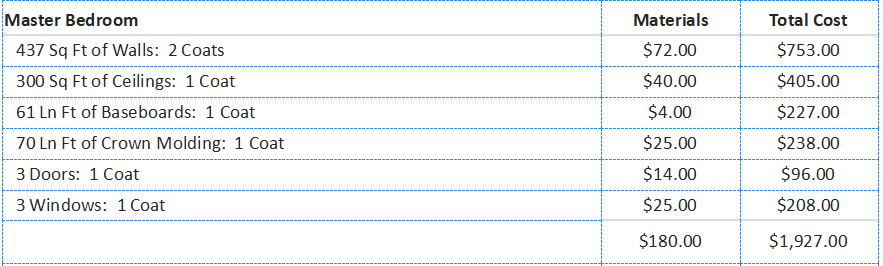
Remove number of coats: (8) from the above image
This option removes the number of coats entirely.
Example:
“437 Sq Ft of Walls:”

For trimming options to work correctly, production rate descriptions must use colons (
:) to separate values. This is the default
format used by the program. Important limitations
- Only one table is allowed per proposal
- Tables must be removed before importing a new one
Removing a table
To remove a table:
- Click inside any table cell
- Right-click and select Remove Table
Alternatively, click Import Estimate and choose Remove All Tables.


If you have any questions, please contact support@thepaintestimator.com.