Date Tagging
Available starting in version 2.0.0.5
Date Tagging allows you to attach daily notes to specific dates on the Job Hours & Materials page. These notes can be extremely useful for tracking progress, billing activity, delays, and job history.
Date Tagging is especially helpful for Time & Materials jobs, disputed work timelines, and reviewing productivity on past projects.
Why use Date Tagging
- Track which days were billed to the customer
- Record tasks completed on a specific day
- Document employee attendance issues
- Log weather-related delays
Adding a daily note
To add a note for a specific date:
- Open the estimate you are currently working on
- Go to the Job Hours & Materials page
- Click the column header for the date you want to tag

This opens the Date Tag menu.
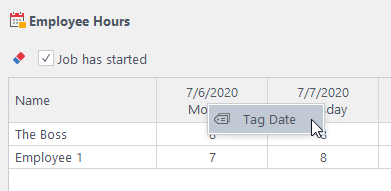
Click Tag Date to open the Daily Notes form.

Enter your notes, then click Save. The form will close and a note icon will appear in the column header for that date.

Viewing daily notes
To quickly view a note, hover over the date column header that contains the note icon.
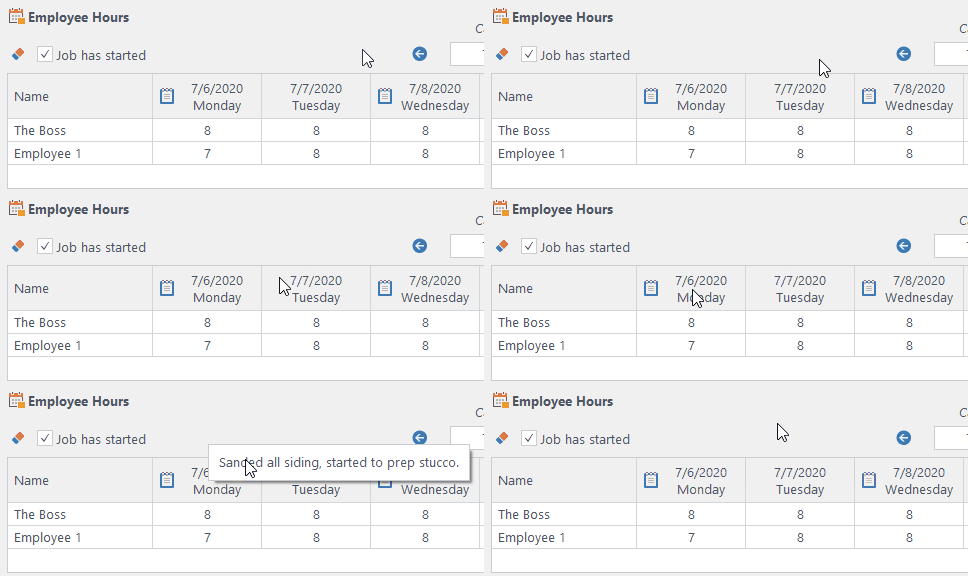
To view or print all notes for the job, click the Daily Notes icon in the top-right corner of the page.


Viewing notes across all jobs
Starting in version 2.0.0.6, you can view all daily notes across every estimate in your customer database.
From the main program menu, click View, then select View All Daily Notes.


If you have any questions, please contact support@thepaintestimator.com .