Coming soon in version 2.0.1.0 - Using OpenAI with The Paint Estimator
The Paint Estimator includes optional AI-powered features such as rewriting text, adjusting tone, and other productivity tools. These features require your own OpenAI account and secret API key.
This page walks you through creating an OpenAI account, generating a secret key, and entering it into The Paint Estimator.
OpenAI usage costs are typically very small for occasional features like rewriting text. Most users spend only pennies.
Step 1: Create an OpenAI account
- Open your web browser and go to https://platform.openai.com
- Click Sign up and create an account
- Verify your email address if prompted
Step 2: Add a billing method
If no billing method is added, OpenAI features in The Paint Estimator will not work — even if a key is entered.
OpenAI requires a billing method before API keys can be used. You are only charged for what you use.
- From the OpenAI dashboard, open your Settings (click on the small gear icon to the left your profile in the upper right hand corner section.) Click on the Billing from the left side menu.
- Add a credit or debit card
- Confirm billing is active

Any prepaid OpenAI credits you add to your account may expire after a period of time (typically one year if unused).
If you are just getting started, it is recommended to add a small amount (for example, $5–$10) and increase it later if needed.
This helps avoid unused credits expiring if you rarely use OpenAI features.
How can I see my actual OpenAI usage?
OpenAI provides an official usage dashboard that shows your real, up-to-date usage and charges. Also your current balance and expiration details
Visit: https://platform.openai.com/usage
This page shows your exact usage and billing details for your OpenAI account.
Step 3: Create your secret API key
- In the OpenAI dashboard, go to API Keys
- Click Create new secret key
- Name the key (example: The Paint Estimator)
- Click Create
Your secret key is shown only once. Copy it immediately and store it somewhere safe. If you lose it, you must create a new key.
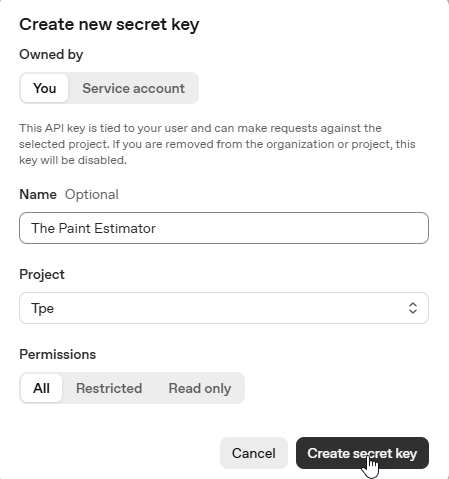
After clicking the secret key button, a dialog will appear like the below image. Remember this only appears once
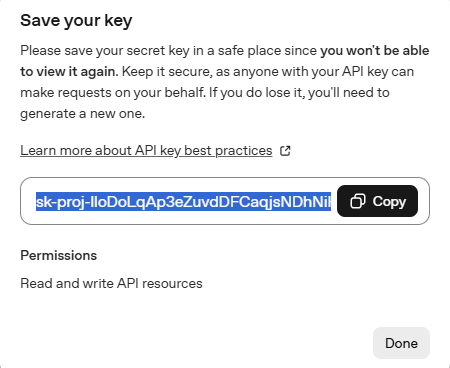
Step 4: Enter your key into The Paint Estimator
Once you have copied your secret key, open The Paint Estimator and follow these steps:
- Open Program Settings
- Click User Settings on the left
- Scroll down to the OpenAI section
- Paste your secret key into the input box
- Check the box labeled Yes, I want to use OpenAI
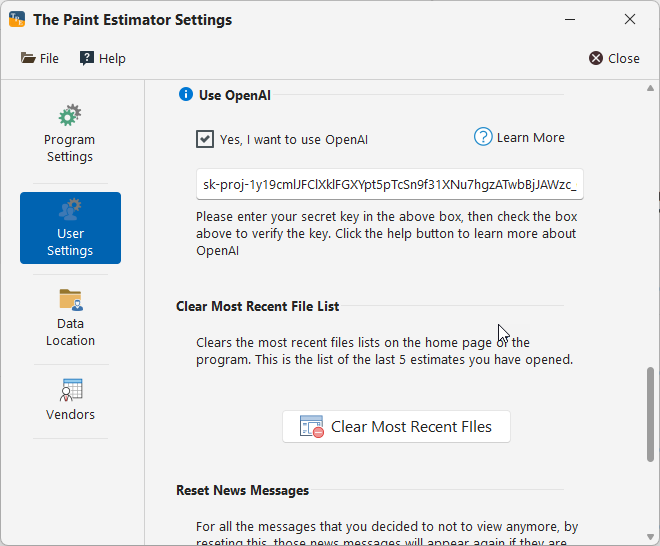
When you check the box, The Paint Estimator automatically verifies the key with OpenAI.
- If the key is valid, you will see a success message
- If the key is not valid, the checkbox will be unchecked automatically
- You can then correct the key and try again
Frequently Asked Questions
How much does OpenAI cost?
OpenAI charges based on usage. Features like rewriting text or changing tone use very small amounts of data. Most users spend only a few cents per month.
Is my data private?
Your OpenAI key is stored locally and used only to perform the requested AI actions inside The Paint Estimator. Your key is never shared with other users.
Can I turn OpenAI off?
Yes. To disable OpenAI features:
- Open Program Settings → User Settings
- Uncheck Yes, I want to use OpenAI
You can also remove the key entirely if you no longer wish to use OpenAI.
Using OpenAI in your proposals and job scope descriptions
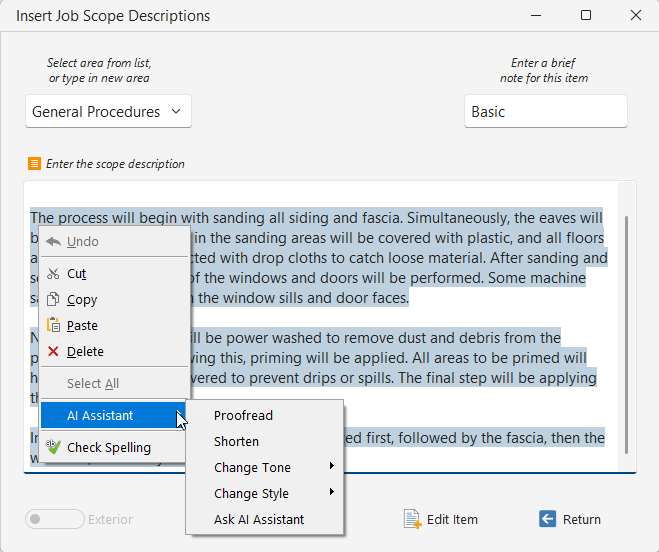
Once you have entered your OpenAI key and restarted the program, you can use OpenAI in your proposals and job scope descriptions. To get a general idea of how it can help, simply open an old estimate and navigate to the proposal page. Highlight some text, then right-click and scroll to the AI Assistant. From there, you will have many options, including changing the tone, altering the style, or shortening the selected text. If you struggle with grammar or spelling, use the proofread option.
There is also a custom option where you can ask OpenAI to perform a task. For example, you can select the text you would like to alter, choose "Ask AI Assistant," and a dialog will appear. Here, you can write a request such as "Can you make this easier for the customer to read," click the generate button, and within a few seconds, the new version of the text will be displayed. You have several options to insert the new text below, above, or simply replace the existing text.
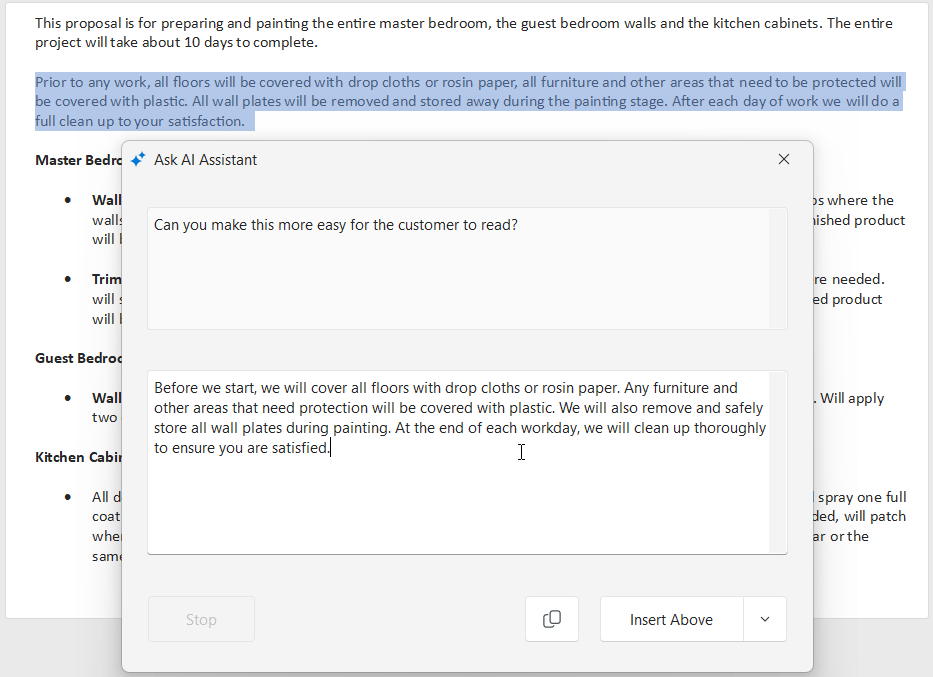
This is something you will have to experiment with to understand what it can do. Sometimes you will get misses instead of hits, especially when trying different tones and styles.
If you have questions about OpenAI or AI features in The Paint Estimator, contact support@thepaintestimator.com .